Desk
How do I set up a desk at home without hurting my back?
Adjust the chair first, then the keyboard, then the screen. HSE's guidance comes down to a few measurements: the top of the screen level with your eyes and about an arm's length away, the keyboard just below elbow height, and the mouse in line with your elbow.
By the Ember Desk editors · · 5 min read · sources last checked 8 November 2026


None of this needs a special chair or a dedicated room. It does need things done in the right order, because each adjustment changes the next one. HSE's workstation checklist says to set the chair height so your arms are in the right position and only then move the screen. People tend to do it the other way round.
Work through it in this order
- Seat height. HSE says the seat should support the front and back of your thighs equally. A dining chair that is too low can be raised with a cushion.
- Seat depth. Leave a gap of 2 to 3 cm between the front of the seat and the back of your knee.
- Lower back. The seat back should support the small of your back. If it does not, a cushion can add the support. A rolled towel is a cheap thing to try before spending anything.
- Feet. They should sit flat on the floor without much pressure from the seat on the backs of your legs. If raising the chair has left them hanging, the checklist suggests a footrest. Any firm, stable box will show you whether one helps.
- Keyboard. Just below elbow height, with your forearms about level and your shoulders relaxed. If you are shrugging, the chair is too low for the table.
- Screen. Directly in front of you and centred with the keyboard, so you are not twisting. The top edge should be level with your eyes, about an arm's length away.
- Mouse. In line with your elbow and as close to the keyboard as it will go. Reaching out to the side for a mouse all day is an easy habit to miss.
- Top of the screen level with your eyes, about an arm's length away.
- Shoulders relaxed, seat high enough that you do not need to shrug.
- Keyboard just below elbow height, forearms roughly horizontal.
- Lower back supported by the seat back or a cushion.
- A gap of 2 to 3 cm between the seat front and the back of your knee.
- Feet flat on the floor, or on a footrest if they are not.
If your desk is a laptop on the kitchen table
A laptop joins its keyboard to its screen, so it can never meet both measurements at once. HSE's answer for prolonged use is to keep the keyboard and mouse separate so that the screen can be raised on a laptop riser or something similar. A separate monitor does the same job.
A stack of firm books is a fair way to test the height before you buy anything. If the height is right, you should soon find you have stopped looking down.
Kitchen tables bring two other problems. Chairs with arms can stop you getting close enough to the table, and clutter underneath can do the same: the checklist asks you to clear obstructions under the desk for this reason. The second is space. If the table has to be cleared for dinner, you will be tempted to skip the set-up the next morning, so keep the riser and keyboard somewhere that makes them quick to put back.
Light, glare and the window behind you
The checklist has a neat test for glare. Hold a mirror in front of the screen and you will see what is reflecting in it. Then move the screen, move the desk or shield the source. Check that any blinds work, too. HSE treats anti-glare filters as a last resort.
For evening work, a desk lamp is a reasonable fix for a dim room, as long as the light is not bouncing off a wall or surface into your eyes. The same checklist asks whether text size is comfortable, and points out that software settings can change it. Making the text bigger costs nothing and stops you leaning in.
It also asks about heat and air, which are easy to overlook in a spare room in January. Circulating some fresh air is the first suggestion, if the room allows it.
Leave room to move
HSE's checklist says space is needed to "move, stretch and fidget". We like that line, because it undoes the idea of one perfect posture you hold for eight hours. A good set-up gives you somewhere comfortable to return to. You still need to get up, and our note on how often to take breaks covers what the guidance says about that. Keep cables tidy while you are down there, since they should not be a trip or snag hazard.
If it still hurts
If you work at a screen every day and something aches, tell your employer. HSE says arrangements should be reviewed when workers report aches, pains or discomfort, and it says workers cannot be charged for display screen equipment an assessment shows is needed. Our guide to what your employer has to provide goes through who counts and what they are owed. If your home has nowhere suitable to work, that matters too: HSE notes home working may not suit everyone, so it is reasonable to raise it, or to look at changing your arrangement.
As for the pain itself, the NHS advice on back pain is to stay active and keep up daily activities where you can. It says to see a GP if the pain has not improved after a few weeks, stops you doing day-to-day things, or worries you. It also lists symptoms that need urgent help, including numbness or weakness in both legs and changes in bladder or bowel control, so read that page rather than waiting it out. We can help you sort out a table. We cannot tell you what is causing your back pain.
Next on the list
How often should you take breaks when working from home?
Short and often. HSE prefers 5 to 10 minutes each hour to 20 minutes every two, and the legal rest break is a separate thing.
Hours · 5 min · 23 July 2026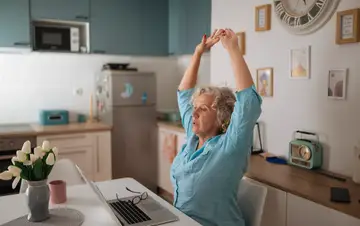
What does your employer have to provide when you work from home?
The same health and safety duties as at the office. A daily screen user also gets an assessment, needed equipment free and an eye test on request.
Rights · 5 min · 10 September 2026